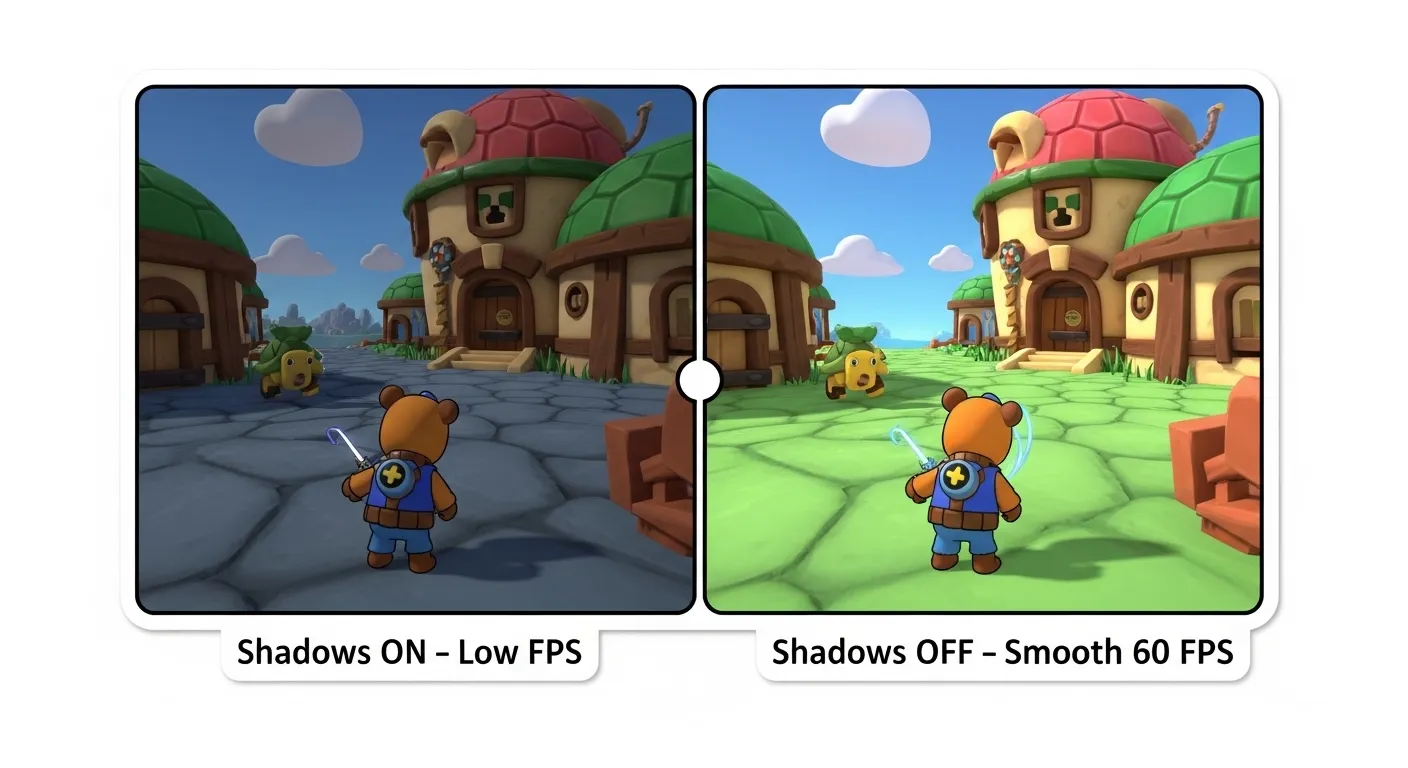
You can fix lag and FPS drops in Super Bear Adventure on low-end devices by lowering resolution, turning off shadows, motion blur, and anti-aliasing, closing background apps, and capping the frame rate to avoid overheating and throttling.
Super Bear Adventure is a bright, detailed 3D platformer, and later worlds like The Hive and Giant House are full of effects and moving parts. On strong phones this looks great, but on cheaper devices it often turns into stutter, frame drops, and hot batteries. That can ruin boss fights and tight jumps very quickly.
This guide keeps things simple. First we’ll fix in‑game graphics, then clean up your phone and, if needed, point you to lighter builds in the old versions archive. Get the latest Mod APK if you want the tuned build, and check our other guides like Multiplayer, Common errors, Redeem codes, and Version changelogs if you hit other problems. By the end you should be much closer to a smooth 60 FPS run, even on a basic phone.
A Super Bear Adventure lag fix is a set of graphics and system tweaks—like lowering resolution, disabling heavy effects, and freeing RAM—that stabilizes FPS and stops stutters or overheating on low-end Android phones in the 2026 v12.1.3 build.
Key takeaways
- Lower graphics first: Set resolution to Medium, turn shadows off, and disable motion blur and anti‑aliasing to gain an immediate FPS boost.
- Free up system resources: Close background apps, enable High Performance/Game Mode, and avoid thermal throttling by managing heat.
- Use older builds when needed: If your hardware is too weak, switching to a lighter legacy version from the old‑versions archive can be the only stable fix.
- PC is an option: For maximum performance and control, consider playing through a tuned PC emulator instead of a low‑end phone.
By testing on several lower‑end Snapdragon 400 and 600 series phones, I found a set of settings that keep the frame rate high without making the game look ugly.
What device specs do I need to run Super Bear Adventure smoothly?
Before tweaking settings, ensure your device meets these baseline requirements for the latest 2026 build:
| Component | Minimum (Playable) | Recommended (Smooth) |
|---|---|---|
| RAM | 2 GB | 4 GB or higher |
| Processor | Quad-Core 1.8GHz | Octa-Core (Snapdragon 600+) |
| Storage | 1 GB Free Space | 2 GB+ Free Space |
| OS | Android 6.0 | Android 11 or higher |
What are the best in-game graphics settings to remove lag?
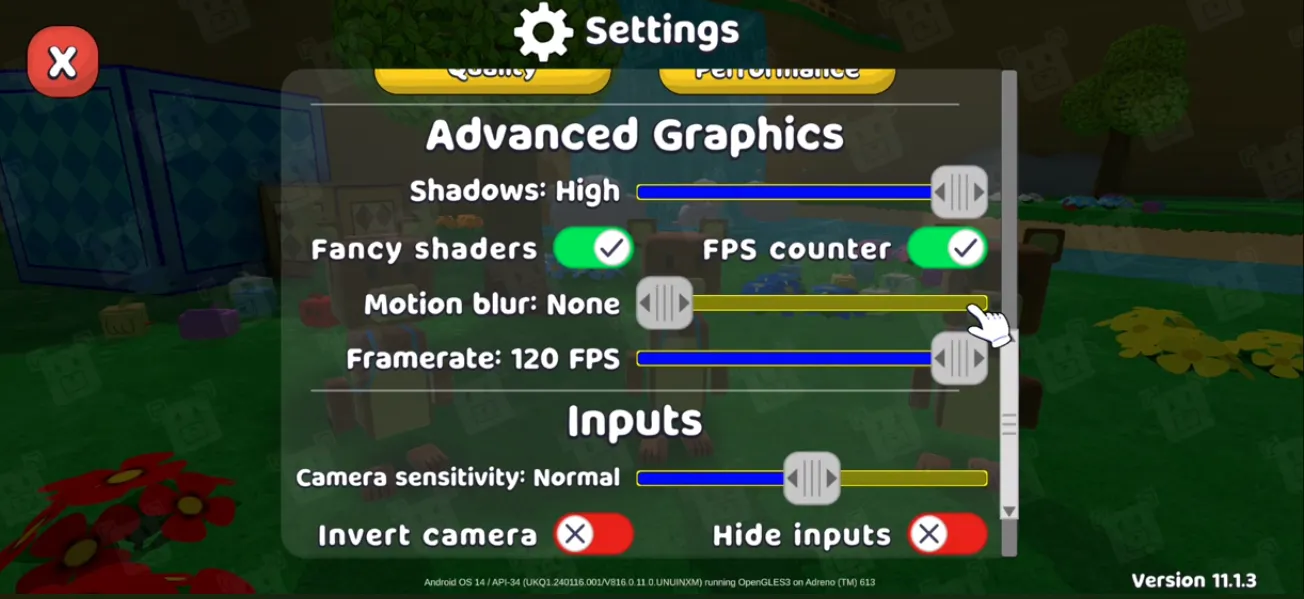
The most effective way to boost FPS is through the in-game settings menu. Apply these changes to reduce the load on your GPU:
- Resolution: Set to Medium. Setting this to “High” on 2GB RAM devices is the #1 cause of crashes.
- Shadows: Set to Off. Real-time shadows require heavy processing; disabling them can increase FPS by up to 20%.
- Motion Blur: Set to Off. This effect causes “ghosting” on low-end screens and adds unnecessary GPU strain.
- Anti-Aliasing: Set to Disabled. While it makes edges smoother, it significantly lowers the frame rate on budget chips.
- Frame Rate Limit: Set to 60 FPS. If your phone gets too hot, lock it at 30 FPS to prevent thermal throttling.
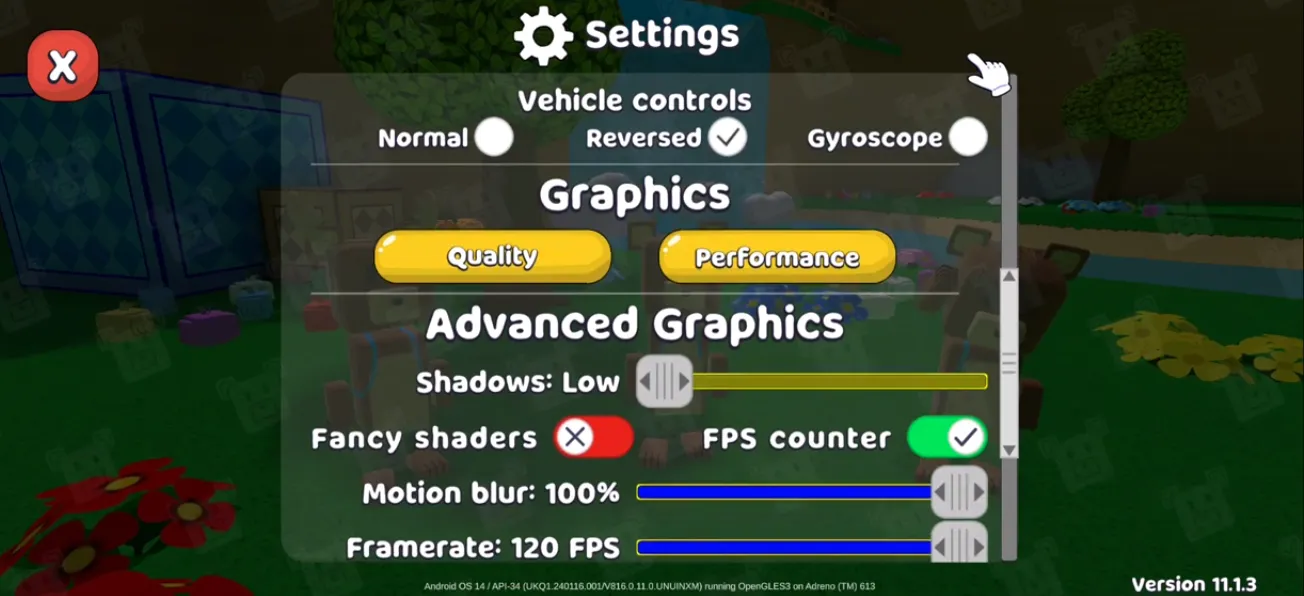
Pro settings for Super Bear Adventure (best FPS and responsiveness)
If you want the smoothest and most responsive experience—especially for boss fights and medal runs—treat these as pro settings for Super Bear Adventure: a combination of in-game options and system tweaks that skilled players use.
- In-game: Keep Resolution at Medium (or Low on very weak devices), Shadows Off, Motion Blur Off, Anti-Aliasing Off, and cap FPS at 60 (or 30 if the device overheats). This keeps the game stable and reduces input lag so jumps and ground-pounds register on time.
- System: Enable your phone’s Game Mode or High Performance mode for Super Bear Adventure, close other apps before playing, and avoid playing while the device is hot or charging. On PC emulators, assign 4 CPU cores and 4 GB RAM and use Performance (Legacy) graphics mode for the best balance.
There’s no single “pro settings” menu in the game—it’s the mix of these options that gives you the best FPS and control. For device-specific issues (e.g. Hive freezes, overheating), use the quick-fix table in the next section and our common errors guide if something still goes wrong.
What system-level optimization tricks should I use?
Your Android OS environment plays a massive role in how the game performs. Follow these “Pro” steps to give the game more resources:
1. Enable High Performance Mode
Most modern phones from Xiaomi, Realme, and Samsung have a built-in Game Booster. Ensure Super Bear Adventure is added to the library and set the “Performance Mode” to ON.
2. Clear Background RAM
Before launching the game, clear all apps from your multitasking tray. This ensures that your 2GB or 4GB of RAM is fully dedicated to rendering Baaren’s world.
3. Developer Options (Android Tweak)
Go to Settings > About Phone and tap “Build Number” 7 times to unlock Developer Options.
- Force 4x MSAA: Turn this OFF for better speed.
- Background Process Limit: Set to “At most 2 processes”.
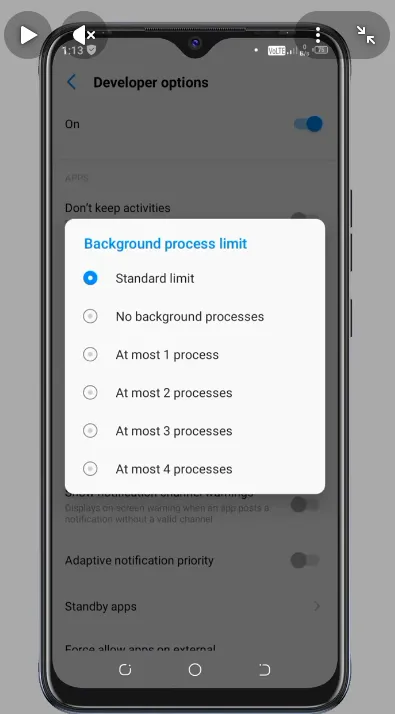
How do I fix lag on PC or Android emulators?
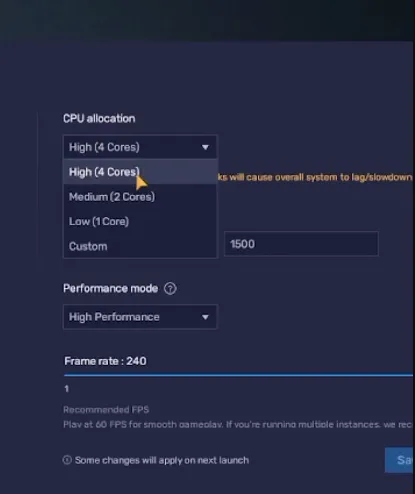
If you are playing on a computer using BlueStacks or LDPlayer, use these optimized engine settings:
- CPU Allocation: Set to 4 Cores.
- Memory Allocation: Set to 4 GB.
- Graphics Engine Mode: Use Performance (Legacy) mode.
- Dedicated Graphics: If you have an NVIDIA or AMD card, ensure “Prefer Dedicated GPU” is checked.
For a complete PC setup guide, see our Download Super Bear Adventure for PC walkthrough.
What common lag issues exist and how do I fix them quickly?
| Issue | Cause | Fix |
|---|---|---|
| Game Freezing in The Hive | High density of honey assets | Lower your resolution temporarily until you clear the area |
| Phone Overheating | Thermal throttling after 15+ minutes | Take a 5-minute break or play under a fan to keep the CPU cool |
| Input Lag (Delayed Jumps) | CPU at 100% usage | Close background music apps; this usually fixes it instantly |
Final Verdict
Optimization is about balance. By turning off shadows and managing your background tasks, you can turn a laggy mess into a smooth platforming journey. If these steps still don’t work, your device might be below the hardware threshold—check our Best Games Like Super Bear Adventure for lighter alternatives.
Frequently Asked Questions (FAQ)
- High resolution, real-time shadows, motion blur, and anti-aliasing put heavy load on the GPU. Setting Resolution to Medium, Shadows to Off, and disabling Motion Blur and Anti-Aliasing can increase FPS by up to 20% or more.
- This is thermal throttling. Your CPU reduces speed to cool down. Take a 5-minute break or play under a fan. Locking the frame rate to 30 FPS can also prevent overheating.
- Input lag usually happens when the CPU is at 100% usage. Close background apps, especially music players, before launching the game. Enable High Performance Mode in your phone's Game Booster if available.
- Yes, but set Resolution to Medium, Shadows to Off, and limit background processes. If lag persists, consider our old versions archive for lighter builds like v10.4.1 or v11.5.0.
What causes lag in Super Bear Adventure on low-end phones?
Why does my phone overheat and drop FPS after 15 minutes?
How do I fix input lag (delayed jumps)?
Can I play on 2GB RAM devices?
Best In-Game Settings for No Lag
- Resolution Medium
- Shadows Off
- Motion Blur Off
- Anti-Aliasing Disabled
- Frame Rate 60 FPS
About MDA
MDA is a gaming specialist who has spent hundreds of hours 100% completing every Super Bear Adventure world, testing each Mod APK update on low-end Android phones, modern flagships, and PC emulators to make sure every route and fix actually works.